

What to change
Ask your supplier to demonstrate the complete published player using a keyboard, including settings, captions where available and a clear route back to the page.
A worked example
Illustrative example
A visitor pauses an introductory video, moves back to replay a section and switches captions on without changing their input method.
Why this matters to your practice
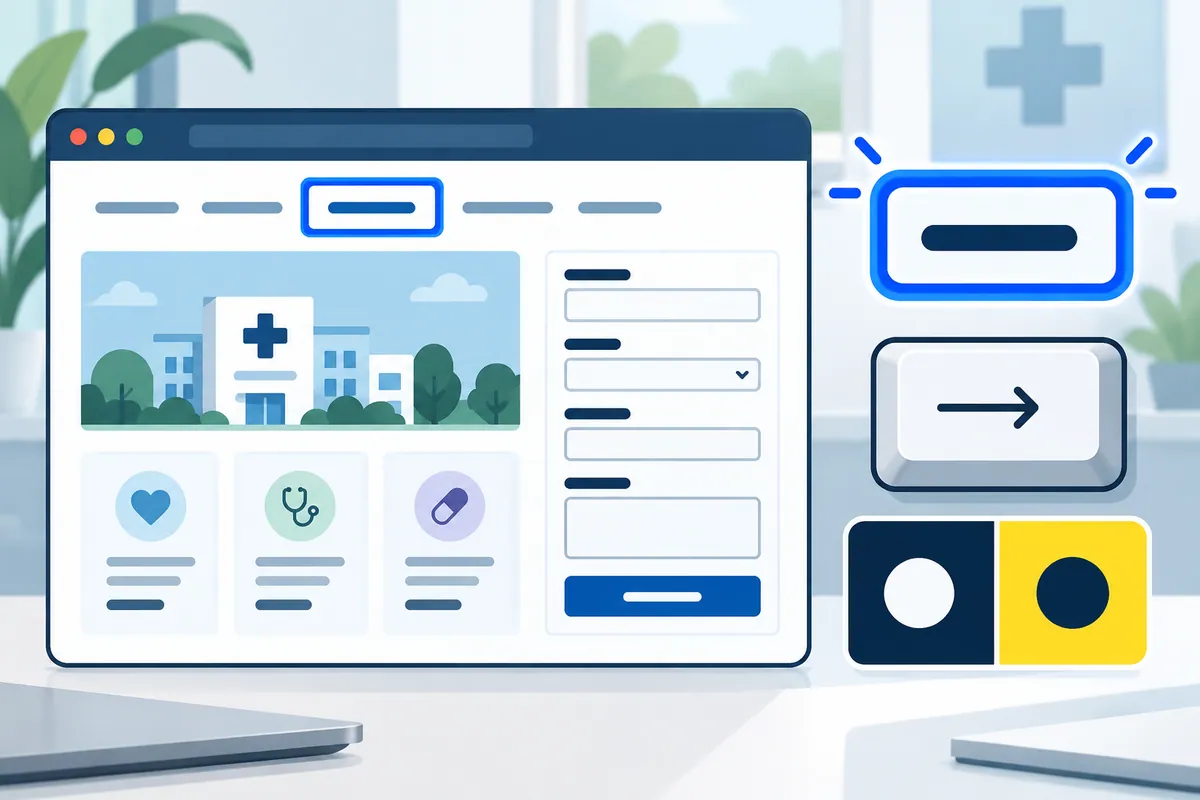
An embedded video is part of your website's journey, including its less prominent controls. Someone should be able to pause, adjust settings and leave the player without a mouse. Ask your supplier to demonstrate those actions on the actual player you publish, not a different sample. Include fullscreen and captions where available. Your team can judge whether the controls are understandable; the supplier should verify the interaction and explain any limitation of the chosen third-party player.
A practical review example
A visitor may start a practice introduction video, pause it, adjust playback and leave the player to read the next section. Ask the supplier to complete that whole sequence on the actual embedded player. A different demonstration player does not establish your site's behaviour. Include less prominent settings and fullscreen where offered. The current control should remain visible and understandable, while a person using reading software should know what each action does without having to guess from an unlabelled icon.
How to check the result
Accept when all essential controls are discoverable, operable and escapable using a keyboard in the supported player configuration.
A mistake to avoid
An accessible player brand does not establish that your selected skin, embed settings and surrounding page preserve its working controls.
Turn reading into a next step
Your action checklist
Work through these checks with your team or supplier. Tick the ones you have resolved and leave unknowns open.
Record what you know, what is still missing and the answer you need from your team or supplier.
Use project decisions only, without personal, patient or confidential details. Entries stay in this page and are not submitted to Kay & Co. Copy or download before leaving; this page does not save your notes.
Further reading
These sources provide background for the topic. The practice examples and checklist are illustrative planning suggestions from Kay & Co.
Related guides
Need help with this?
Tell us what is getting in the way. Kay & Co. can help you understand the options and turn the next step into something that works for your practice.
Explore websites & patient experience services or discuss your project.
Try the free Healthcare Digital Planner to find your starting priority.